
Wield Camtasia Mac like a Pro.
A two-day extravaganza of intensive learning and workflow enhancement within a stone’s throw of Detroit Metro Airport.
Daniel Park, author of Camtasia Studio: The Definitive Guide,
hands you the keys to screencasting productivity
in the most comprehensive Camtasia Mac course available.
CAMTASIA FOR MAC: March 28-29, 2013. Romulus, MI
NOTE: The March Camtasia Mac Boot Camp session has been cancelled. Please stay tuned for another Mac Boot Camp taking place this summer in Orlando, FL. Subscribe to The Screencaster for news on exact dates and venue.
We also teach Camtasia Studio for PC courses, both beginner and advanced. Learn more…
Location: The Fours Points Sheraton, Romulus, MI, a FREE 5-minute shuttle ride from Detroit Metro Airport. Participants who require a hotel room can take advantage of our group rate of $89/night.
Dear Aspiring Camtasia Mac Maven:
During my three-year tenure at TechSmith (creator of Camtasia), I was known as the “alternative platform guy.” Despite being a 100% Windows outfit, I had a PowerPC Mac at home. And I had a PalmPilot hanging my belt clip (why yes, I am a nerd, thanks for pointing that out).
The president of the company predicted that both my beloved platforms would soon go the way of the dinosaur. He turned out to be half right. Palm as a company is now dead, but in the past decade, Apple computers went from sitting on about 4% of desks and laps to about 14%. The Macintosh is here to stay. And no one’s gladder than I that TechSmith finally saw the light and made Apple-loving screencasters a tool of their own.
This is why I was surprised to discover that no one out there appears to be teaching Camtasia Mac classes. Now on version 2.3, this little power tool has become nearly as robust as its PC counterpart. Yet all the pro software trainers who rushed to provide Camtasia Studio for Windows classes have been decidedly silent on the Mac front.
Perhaps it’s better that way. Here’s why:
None of those folks actually screencast for a living. It’s what these instructors DON’T know, and therefore don’t teach, that makes all the difference. For example:
- They don’t know the million little workflow tricks that can shave days off of each and every project.
- They don’t know the third-party software tools that compliment Camtasia.
- They don’t know how software, the right equipment, and know-how can magically combine to produce excellent studio-level audio, even on a budget.
- They don’t know how to construct an hour-long planning session that will save at least three on the back-end.
- They don’t possess the hard-learned techniques of dealing with clients, colleagues, and bosses to get the project in the can without becoming mired in committee-review hell.
But I do. And I’ve been doing it for over a decade.
Back in September, we did two barnburner Boot Camp sessions in Chicago. At the end, I offered to pass around my iPhone so that participants could record their candid thoughts on the course. Many were camera-shy, but a few took up the challenge:
[jwplayer config=”bootcamp testimonials” mediaid=”1222″]
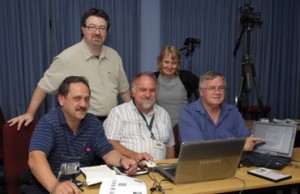
A group photo of me with my incredible Camtasia Studio students (Mathematics Professors).
Port Elizabeth, South Africa – February 2011
How do I know if the Camtasia Mac Boot Camp is for me?
If you’re an enthusiastic beginning or intermediate-level learner who wants to create top-drawer tutorials and marketing spots using Apple computers, then this course is for you.
Okay. How do I know if it’s NOT for me?
This public Camtasia training class is not suited to organizations who want to implement department- or company-wide knowledge of screencasting techniques. Our private, on-site courses are the preferred path for those organizations. It’s also not for those who use Windows PCs – we offer public Camtasia Studio classes for those folks.
What will I learn in this Camtasia Mac class?
Course Itinerary
The Camtasia Mac Boot Camp is a healthy mix of theory and practice, taking you from the planning stages of your project all the way through recording, editing, production, and sharing. While we’ll be working on stock projects in class, the more intermediate and advanced users are encouraged to bring and work on their own projects, where I’ll be available to assist, and may even use your project as a class example. Here’s a breakdown of the two-day training:
Day One
Preliminaries: Course Introduction, introduction to the software, polling students to determine their individual needs for what they want out of the course.
Curriculum Design, Scripting, and Storyboarding: Finding your audience, basic principles of educational multimedia, importance of scripting, basic storyboarding techniques.
Basics of Recording:
Setting up your recording – Setting the capture area, choosing which streams to record.
Making your Recording – A guide to your first recording.
Recording Preferences – Frame rate, system audio, and other settings.
Workflow tips – Avoiding common recording mistakes, plus time-saving tips.
Working with Camtasia Studio:
Introduction to the User Interface – exploration of the timeline, assets pane, clip properties, and canvas.
Basic Timeline-based Editing – Making use of Media contents, adding content to the timeline, adjusting the Canvas preferences, zooming both your timeline and canvas views. Three methods for making basic cuts, and two methods deleting entire clips.
Multitrack Considerations – An exploration of the multi-track system and how to layer content, including how to group clips together.
Visual Properties – Adjust the size, opacity, position, and rotation of all visual elements on the timeline. Includes coverage of stock animations.
Video FX – Apply special filters to visual media, such as Drop Shadow, Colorize, Device Frame, Glow, Keystroke, Mask, Reflection, Sepia, Spotlight & Window Spotlight, and how to remove a color from footage to create green screen effects.
Day Two
Working with Camtasia Mac (contd.):
Advanced Editing Techniques – Splitting clips, adjusting clip speed, extending clips, viewing, adding, & removing tracks.
Markers – Creating, renaming, & removing markers, plus a discussion of how markers can make editing & production easier. Includes both project-wide and clip-specific markers, and the uses of each.
Saving your Work – Saving & opening projects, and saving an individual frame.
Audio in Camtasia Mac:
Recording Audio Only – Adding a narration track to your project. Also includes the capture of system sound if desired.
Audio Editing – How to edit audio on the timeline.
Audio FX – Special effects for audio. Includes effects like fades and other volume adjustments, silencing out a selection, and audio enhancements (dynamic range control, background noise removal, and pitch adjustment). Adjusting clip speed of audio is also discussed.
Advanced Camtasia Mac Tricks and Effects:
Animations – Animating video clips, still images, and annotations over time. Stock animations are also discussed, as is the use of SmartFocus.
Recording & Editing Camera Video – Setting up the camera, choosing the preview mode, formatting options.
Transitions – Adding, altering, setting duration, and removal.
Annotations – Defining an annotation, adding text, adding an Interactive Hotspot, Hotspot capabilities, adjusting properties.
Captions – Adding narration text, formatting text, and synchronizing caption content.
Cursor FX – Glowing and magnified cursors as well as mouseclick effects.
The Production Process
The Choices – A fly-by overview of the different production options available in Camtasia Mac and how to leverage each for specific purposes.
Common Production Elements – Regardless of final output choice, certain elements are common to all, such as encoding options, video size, video info, watermarks, SCORM, embedding in HTML, marker (table of contents) options.
File Format options – After an assessment of the client’s most likely output contenders, we discuss the specifics of these formats.
Advanced Production Options –Production Preview, Production Profiles, Batch production, Camtasia Player.
TechSmith Smart Player – How to produce screencasts, complete with interactive features, for viewing on the iPhone.
[button link=”https://www.dappertext-shop.com/add_cart.asp?out=1&quick=1&item_id=24″ color=”#a96bac”]REGISTER NOW for Mac Training[/button]
Keep in mind that the course is learner-driven. Registrants will be surveyed ahead of time as their current needs, the gaps in their knowledge, and what they’d most like to take away from the course. Time permitting, we strive to address these topics to the benefit of all.
Daniel Park, the original Camtasia Studio maven, with you every step of the way.
Back in 2000, TechSmith Corporation introduced a little suite of applications called Camtasia. At that point, it was no more than a tiny recorder utility, along with a small producer application that let you string multiple recordings together. A humble little program with big implications.
They brought me in as an outside consultant, where I wielded Camtasia to make some of the very first screencasts (which were, not surprisingly, about Camtasia). I was making these screencasts before the word “screencast” even existed.
After a brief tenure there as a full-time employee, I once again struck out as a consultant, where I was approached by a small tech publisher to leverage my experience for a book, one that would be so definitive that no one else would bother trying to top it.
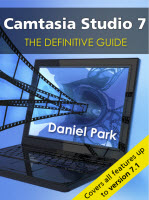 Camtasia Studio 3: The Definitive Guide was born, and soon to follow were paper editions for versions 4, 5, and 6, an all-digital guide for version 7. Now we’re on the cusp of releasing the newly revamped Camtasia Studio 8: The Definitive Guide, and it remains, as ever, without peer in helping do-it-yourselfers get up to speed quickly.
Being a long-time Mac afficionado (my first one was one of the earliest PowerMacs), I was delighted when TechSmith finally introduced a Mac version of their amazing screencasting tool. This was not a simple port of the PC version. Indeed, it had been built from completely from scratch with a Mac audience in mind, and I was eager to dive in and learn its every intricacy. I’ve put it to use on dozens of real-world projects, and I’m eager to share that knowledge with you.
I’m also one of only a handful of TechSmith Recommended Training Providers, and currently the ONLY one who services North America. In fact, I go all over the world.
Past learners have loved our Camtasia training.

While this is the first public course we’ll be offering, I have offered private courses for companies of all shapes and sizes for the past decade. Organizations like Pfizer, the Mayo Clinic, and the Internal Revenue Service. All very different enterprises with wildly different goals. But they have one thing in common. They came away from the training happy, more knowledgeable, and enthusiastic about the possibilities of that new knowledge.
I had one training assignment a few years ago where I was to teach Camtasia Studio at Knowledgewave Training, a nationally recognized training firm in Vermont. I gotta tell you, training a room full of expert trainers is not for the faint of heart. But in the end, the knowledge gained in that session helped them develop the materials to launch Log On to Learn, a very well-received training video portal.
This is what participant Matt Wohl had to say about the training:
[jwplayer mediaid=”782″]
That’s a heck of a compliment coming from an expert trainer like Matt. But he’s also not alone…
“The specialized 3-day training by dappertext were delivered in a professional way with lots of flexibility to cater for the needs of individual participants. Not only did dappertext deliver on theobjectives of the training course, the training also created a perspective of CS and its functionalities that inspired us to pursue a number of new and exciting applications of CS.”
– Prof. Werner Olivier, Nelson Mandela Metropolitan University, Port Elizabeth, South Africa
“When I needed help getting up and running with Camtasia Studio, I got Daniel Park’s name as a recommendation, the man who literally wrote the book on this application. And I can’t tell you howglad I am that I called him. He worked with me in digestible hourly sessions via phone and webcast to help me master Camtasia Studio in a fraction of the time it would have taken me otherwise. For training or consulting on screencasting, give Daniel a call – you won’t regret it for a moment.”
– John Nessel, President, Restaurant Research Group
Standard price for an exceptional course, plus a free bonus!
The cost of the course is $999 for both days. This is roughly on par with what other, vastly less qualified, instructors charge. As we’re still in the early stages of offering public classes, I wanted a large pool of students to help me tune the program, and hopefully establish a blueprint for future (significantly more expensive) public courses.
Exclusive special bonus
By signing up for our Boot Camp, I’m also giving away a highly useful bonus:
- A coupon for a free 30-minute one-on-one teleconsulting session with yours truly. Most students come away from my courses psyched about what this incredible tool can do for them. But later, when they get involved with their own actual projects, they often get stuck by a technical hassle, workflow issue, or their own sparse knowledge on certain specialized features. At that point, it’s critical to have an expert in your corner, someone who’s seen it all, and can guide you in the right direction. This is doubly true if you’ve got a deadline looming.
You’d be amazed what we can accomplish together in a half hour. Your coupon…
- Has no blackout dates.
- Never expires.
- Entitles you to priority scheduling.
- Session will always be with me, Daniel Park, and never an associate.
Just touch base when you’re ready to use it, and you’re well on your way to getting your screencasting issues resolved. $190 value.
Refreshments will be provided during class, and we’ll also be handing out free swag, compliments of our friends at TechSmith Corporation.
Our guarantee: Love it or it’s FREE.
If at the end of the course, you decide that it was two days of your time poorly spent, I’ll give you 100% of your tuition back. In the eight years I’ve been teaching corporate clients, we’ve never had a single trainee express dissatisfaction, so the odds of walking away happy are definitely in your favor.
A hard limit of 15 slots for each course.
This introductory offer is going out on the TechSmith course catalog, our site, and a couple thousand Screencaster subscribers. There are 15 slots for this class. That’s it. I believe in providing lots of personal attention to my course participants, so I absolutely will not admit more than 15.
We’ll happily take your payment information via online purchase. If you prefer to pay by check, simply contact us, and we’ll be happy to assist. But hurry, as these very limited slots will not last long.
[button link=”https://www.dappertext-shop.com/add_cart.asp?out=1&quick=1&item_id=24″ color=”#a96bac”]REGISTER NOW for Mac Training[/button]